The new Pin Panel feature lets you lock the Quickture panel to a specific sequence, so it doesn’t automatically switch when you change sequences in your project. This is perfect for reviewing transcripts, comparing edits, or referencing notes while navigating elsewhere in your timeline or bins.
Let’s take a look!
Normally, the Quickture panel follows whatever sequence you click on.
When pinned, Quickture stays focused on the current sequence, even if you open or select another one.
This means you can:
Read transcripts without losing your place
Reference notes while browsing other sequences
Compare content across timelines without constant panel switching
Pinning the panel is quick and easy.
Open the sequence you want to stay focused on
In the Quickture panel header, click the Pin icon
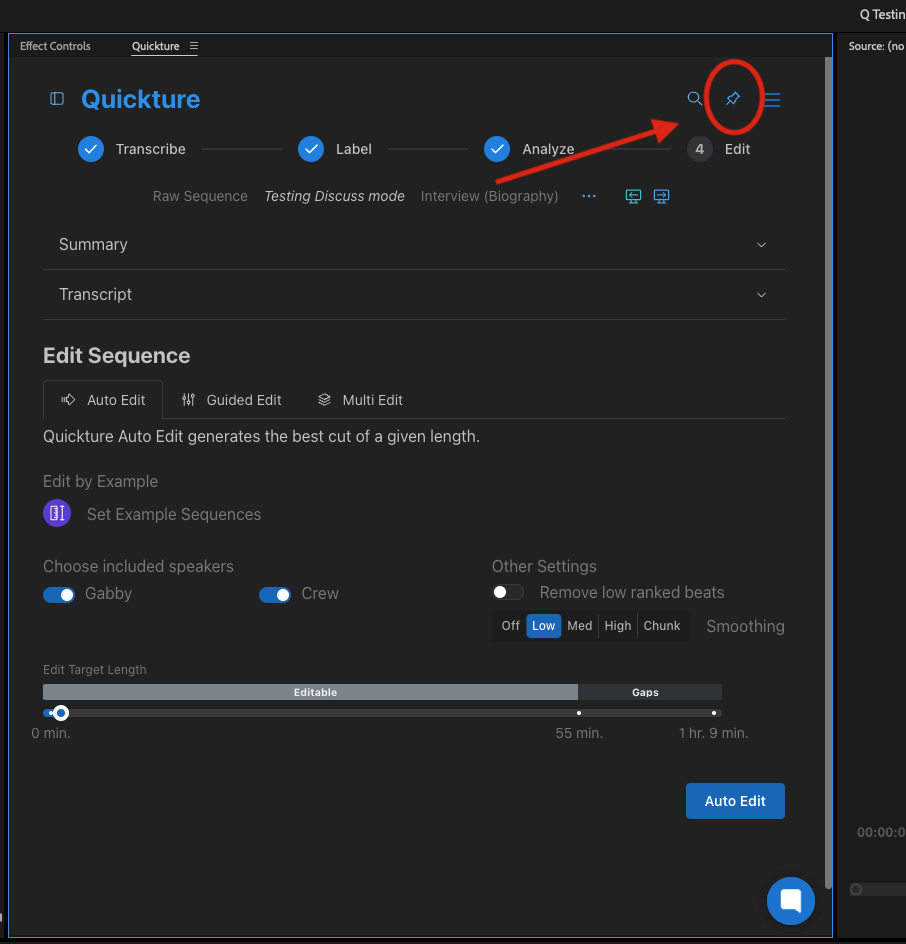
The panel is now locked to that sequence
Once pinned, changing sequences will not update the Quickture panel.
To return to the default behavior:
Click the Pin icon again
The panel will resume following the active sequence
Simple as that.
Pinning is especially useful when you’re:
Reviewing a transcript while navigating other sequences
Comparing edits across timelines
Referencing summaries or notes during a larger edit session
Working on a second monitor
It’s a small change that makes a big difference in staying focused.
