Getting your media organized correctly before processing is an important step. How you structure sequences in Avid or Premiere directly affects how well Quickture can understand and work with your footage.
Each interview should be its own sequence, from start to finish, including all takes. Do not combine multiple interviews into a single sequence. Keeping interviews in separate sequences allows Quickture to reference each one individually when building an edit, rather than trying to work from a single long sequence with everything combined.
If you are shooting multi-cam, group and sync your cameras first, then bring the grouped sequence into Quickture. Quickture will make straight cuts through the group by default and preserve access to all angles for the editor to work with afterward.
B-roll and archival footage can be organized the way your team normally organizes it, whether by setup, by day, or by topic. Once it is processed, the team can search it visually rather than logging it manually clip by clip (see Quickture Vision below).
Once a sequence is grouped, synced, and named, AEs can initiate processing in Quickture. Processing only needs to happen once per sequence, and multiple sequences can be batched through transcription. After that, all Quickture data is tied to the sequence. If another team member opens that bin from a different project, the Quickture analysis travels with it and there is no need to re-process.
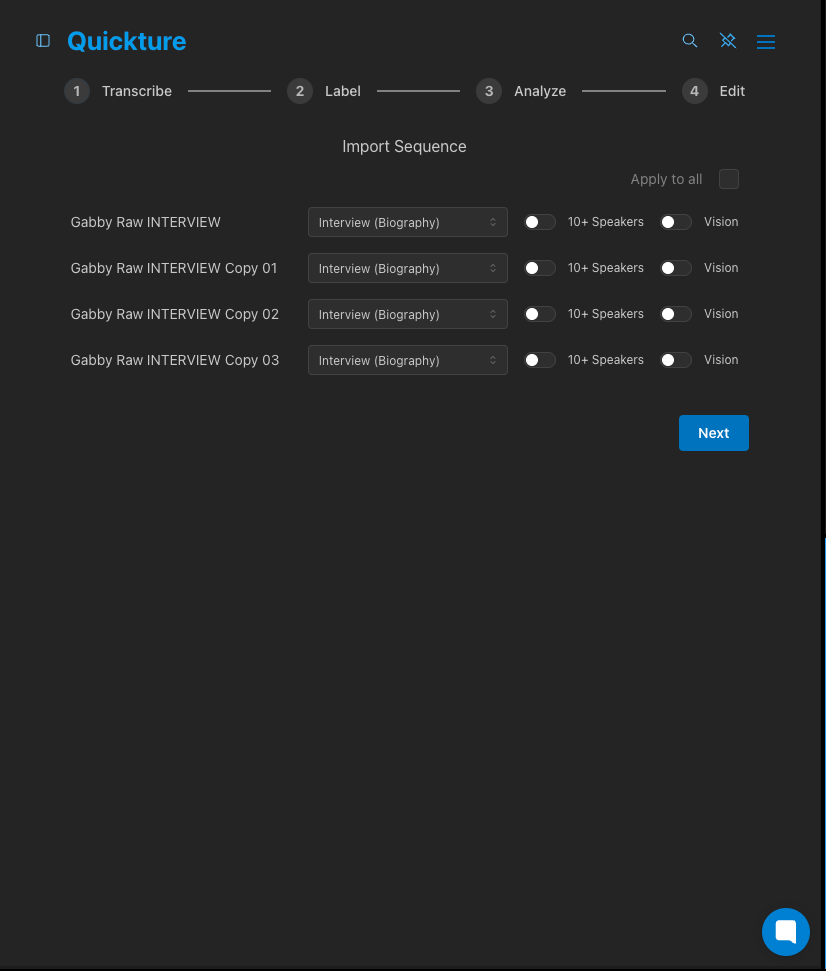
Highlight multiple sequences to batch process them through transcription.
Once footage has been processed, story producers can start working in Quickture before a single edit has been made. The goal at this stage is to understand what you have, plan your edit, and generate a first-pass assembly.
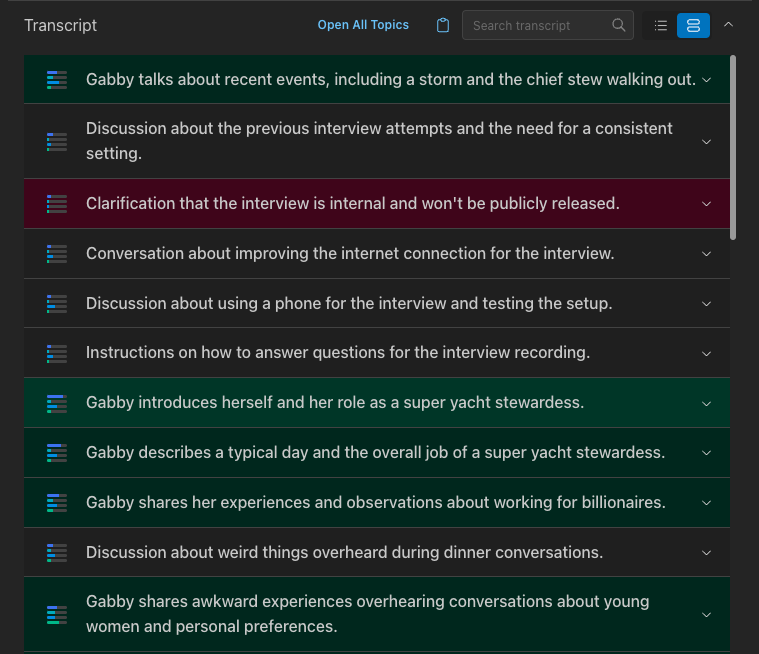
Every processed sequence has a transcript available in Quickture. Transcripts can be viewed as raw text or broken down into story beats, which summarize what each section of the transcript covers. Use the story beats view to quickly identify which sections are relevant to your episode without watching the full footage.
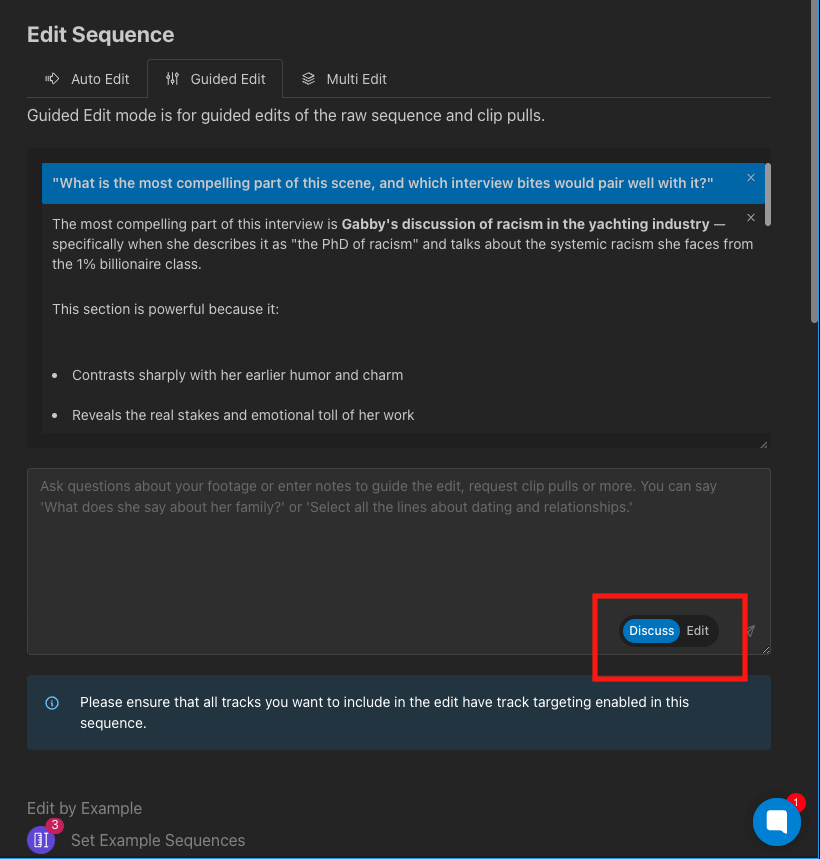
Discuss mode lets you have a conversation with Quickture about your footage before committing to an edit. This is the best place to start when you are trying to figure out how to structure a scene or weigh options across multiple interviews.
To use Discuss mode with multiple interviews:
Open your primary sequence (e.g., your main interview or scene).
In the Multi Edit tab, select the additional interview sequences you want to include.
Switch to the Discuss tab.
Ask questions in plain language. For example:
"What do all five subjects say about [topic]? Make a chart and sort it by how emotional or dramatic it is."
"What is the most compelling part of this scene, and which interview bites would pair well with it?"
Quickture has access to everything across all selected sequences when you ask questions in Discuss mode. You can iterate, ask follow-up questions, request re-sorting by a different quality (most dramatic, most specific, most concise), and refine your plan before touching the edit. Once you are happy with the direction, switch to Edit mode and ask Quickture to make the edit based on your conversation.
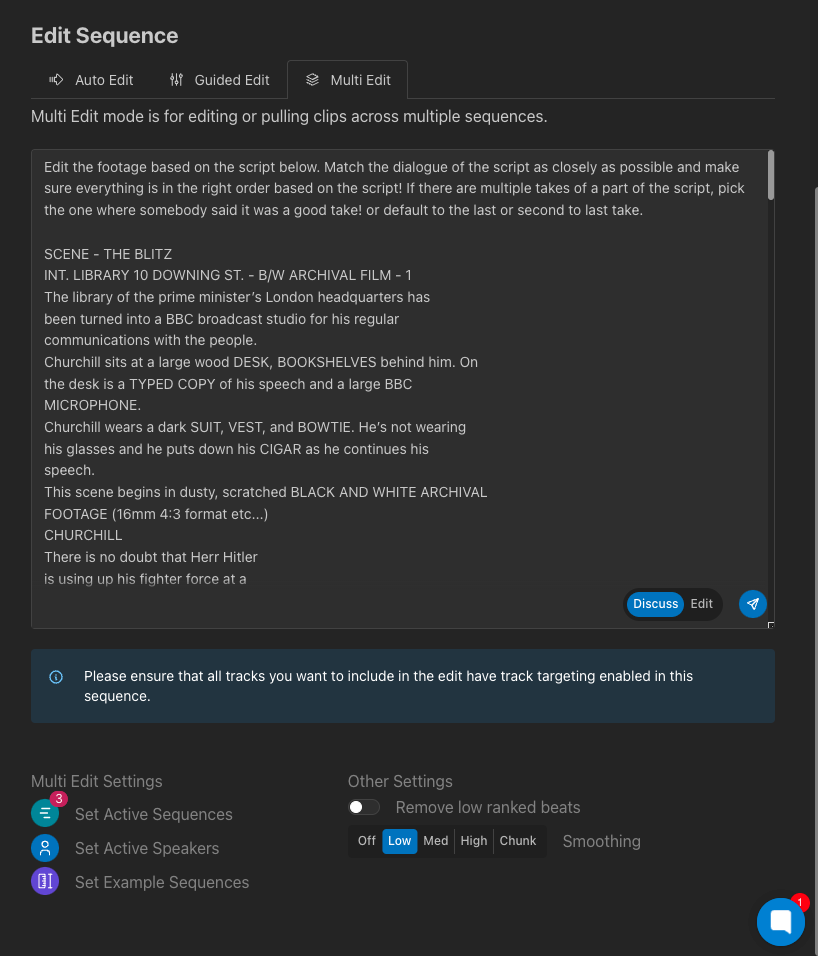
If your team has a shooting script, story outline, or field notes, you can paste them directly into the prompt in Edit mode. You do not need to format them. Quickture can parse scene directions, notes, and script text together.
A few ways to use written materials in your prompt:
Script only: "Edit based on this script. If someone doesn't say exactly what's written, find the closest thing. If anyone says something great that isn't in the script but serves the story, include it."
Script with field notes: Paste the script first, then add: "Here are field notes from the shoot. Use these to inform which take to select."
Outline with multiple speakers: Include all relevant interview sequences in Multi Edit, then paste your outline and say: "Tell this story. Don't rely only on the people referenced in the script. Find the best bite from anyone who covers each beat."
Quickture edits at the sentence level, so it will always use complete sentences and will not create composite quotes from partial lines.
For a long-form, interview-heavy show, a practical approach is to work scene by scene or act by act rather than feeding the entire episode at once. For each story beat:
Select the relevant interview sequences in Multi Edit.
Paste your script or outline section and any field notes.
Ask for an assembly. It is fine to ask for a slightly fatter cut than you need, since it is easier to trim down than to go back to raw footage.
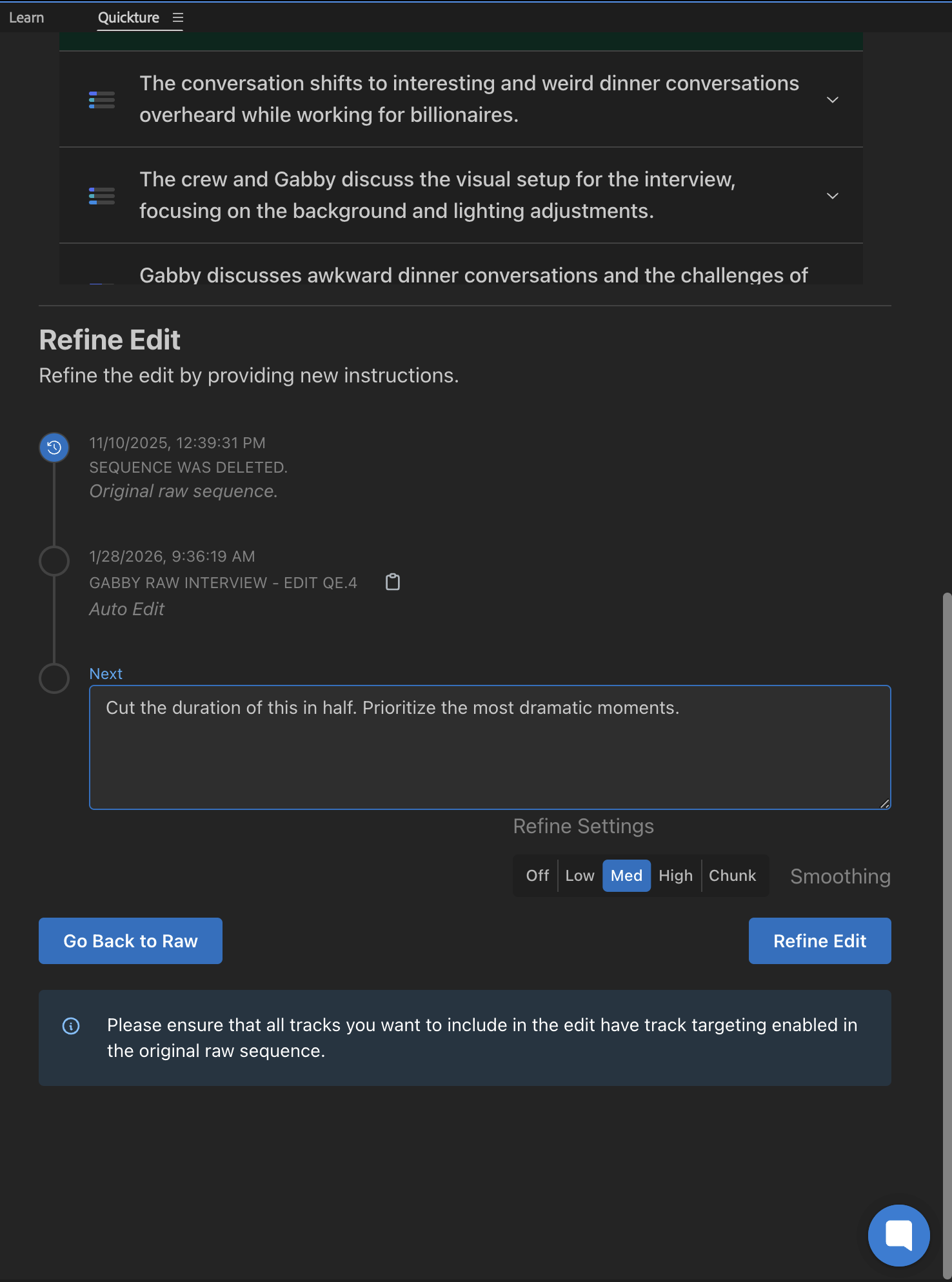
Use subsequent prompts to refine: "This is too long. Cut the duration in half and focus on the most dramatic moments." or "There is too much from [speaker] at the top. Lose their second section."
If you have finished episodes from a previous season, you can include one or two as example sequences in Multi Edit. Quickture will study the structure, tone, and pacing of those episodes and apply that logic to the new material, without mimicking the specific lines. Two or three example episodes is usually enough.
After a first-pass assembly exists, editors and story producers use Quickture to refine and tighten the cut.
From within the Refine Edit chat box at the bottom of the panel you can continue to give Quickture notes on your edited sequence. For example:
"The whole thing is too long. Tighten the cooking section and cut [speaker]'s second interview segment."
"Cut the duration of this in half. Prioritize the most dramatic moments."
"Keep the intro for each character but trim everything else."
Giving a target duration is often more effective than asking Quickture to decide what to remove. The more specific your notes, the more precisely it will follow them.
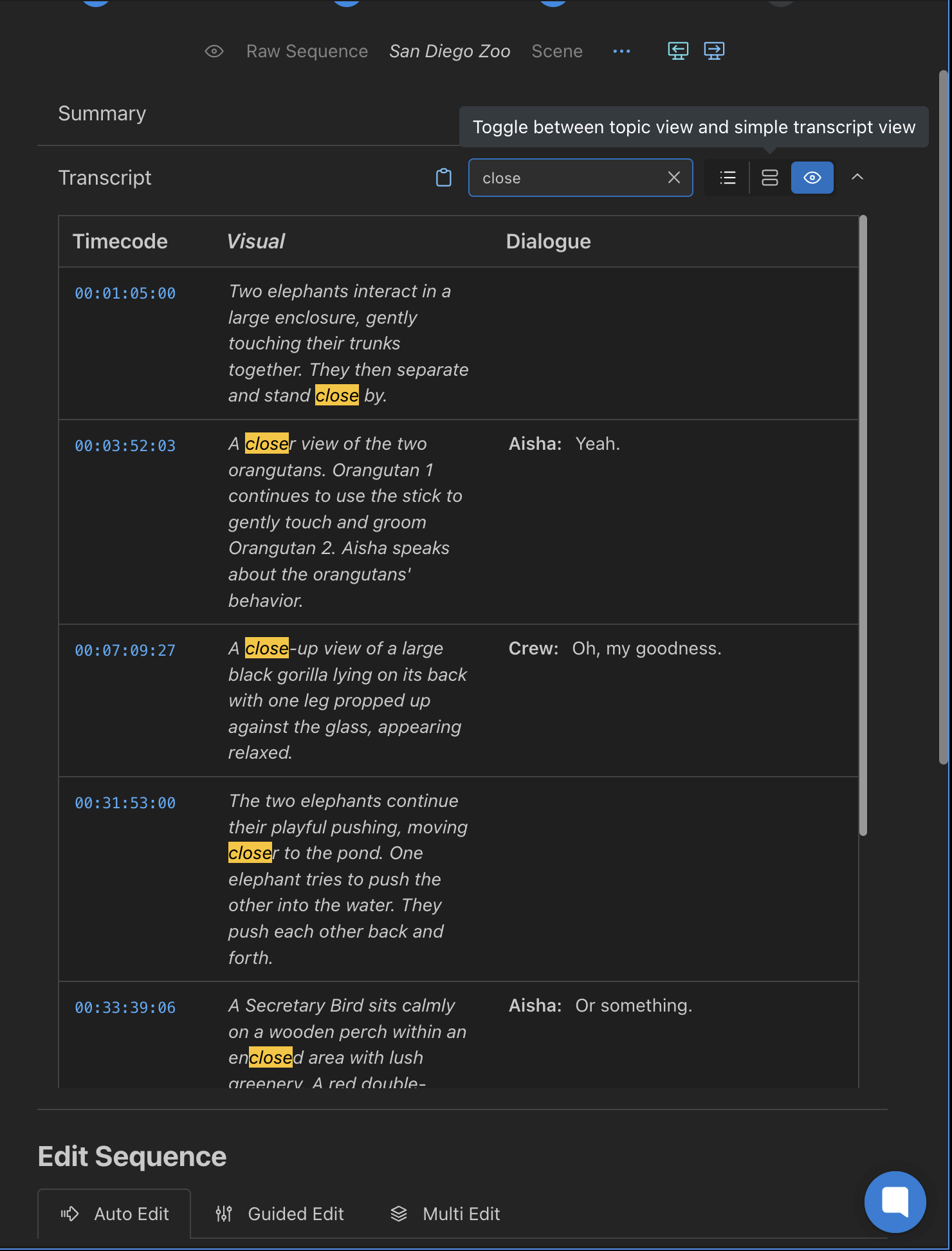
For any sequence processed with Quickture Vision enabled, Quickture generates a detailed Visual Transcript, including shot descriptions, dialogue, and corresponding timecode. This can be used to quickly see what is happening in your footage visually at a glance. You can use keyword searches at the top of the transcript to quickly navigate through the transcript and identify key beats.
You can also use our Vision Search feature, the little magnifying glass icon in the upper right corner of the panel, to search for any b-roll shots that might not have been present in the Visual Transcript. You can search for shots across a single sequence or across your entire project:
"Show me all shots of [specific action or subject]."
"Find all license plates." (useful for flagging shots that may need blurring)
"Find me every instance of [specific character] laughing.”
Results can be checked off and markers can be dropped directly into the sequence from the search results.
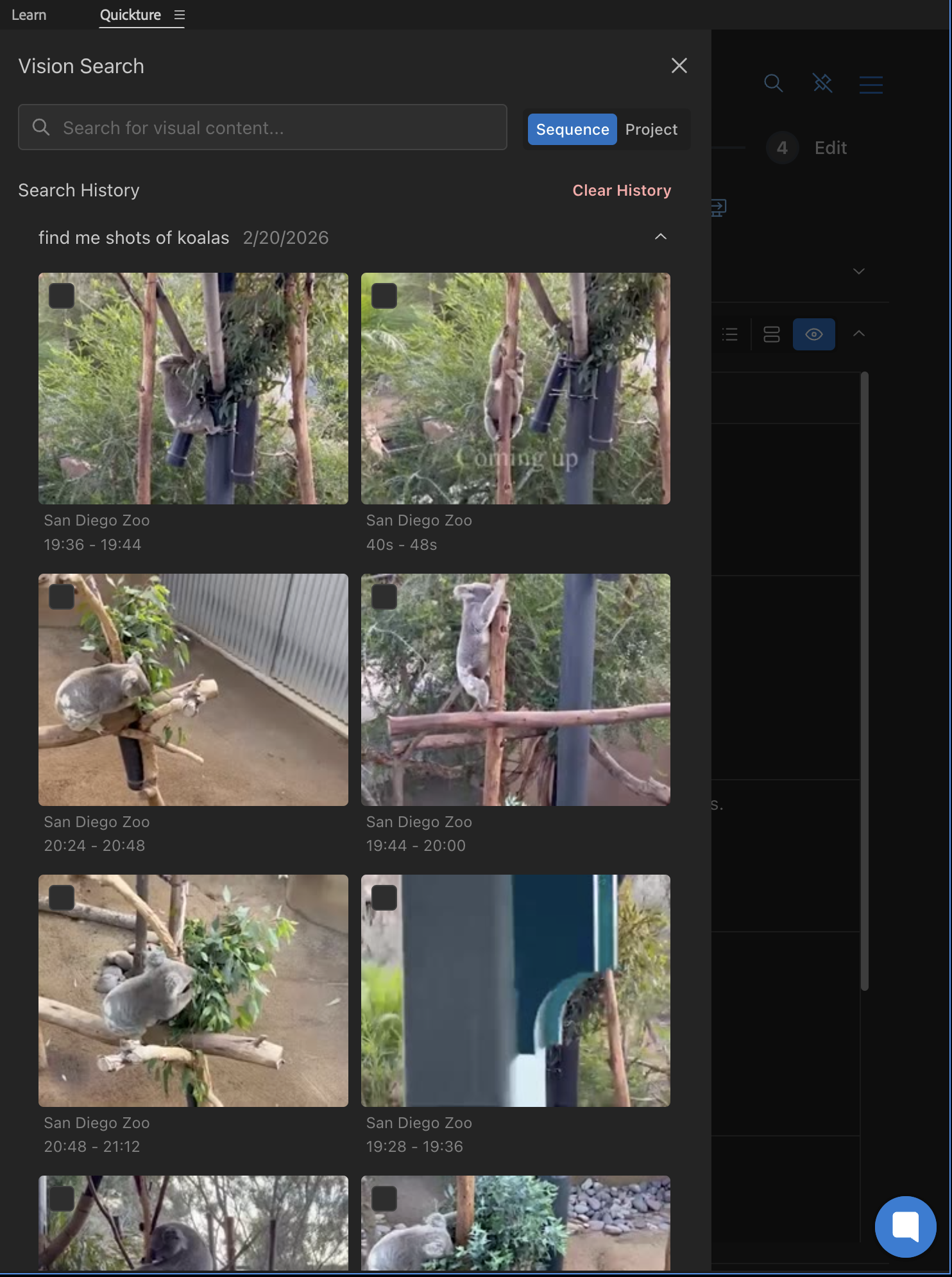
You can click on each image to have Quickture navigate to that shot within your sequence or project. Click on the little black boxes in each shot to have markers added within your sequences.
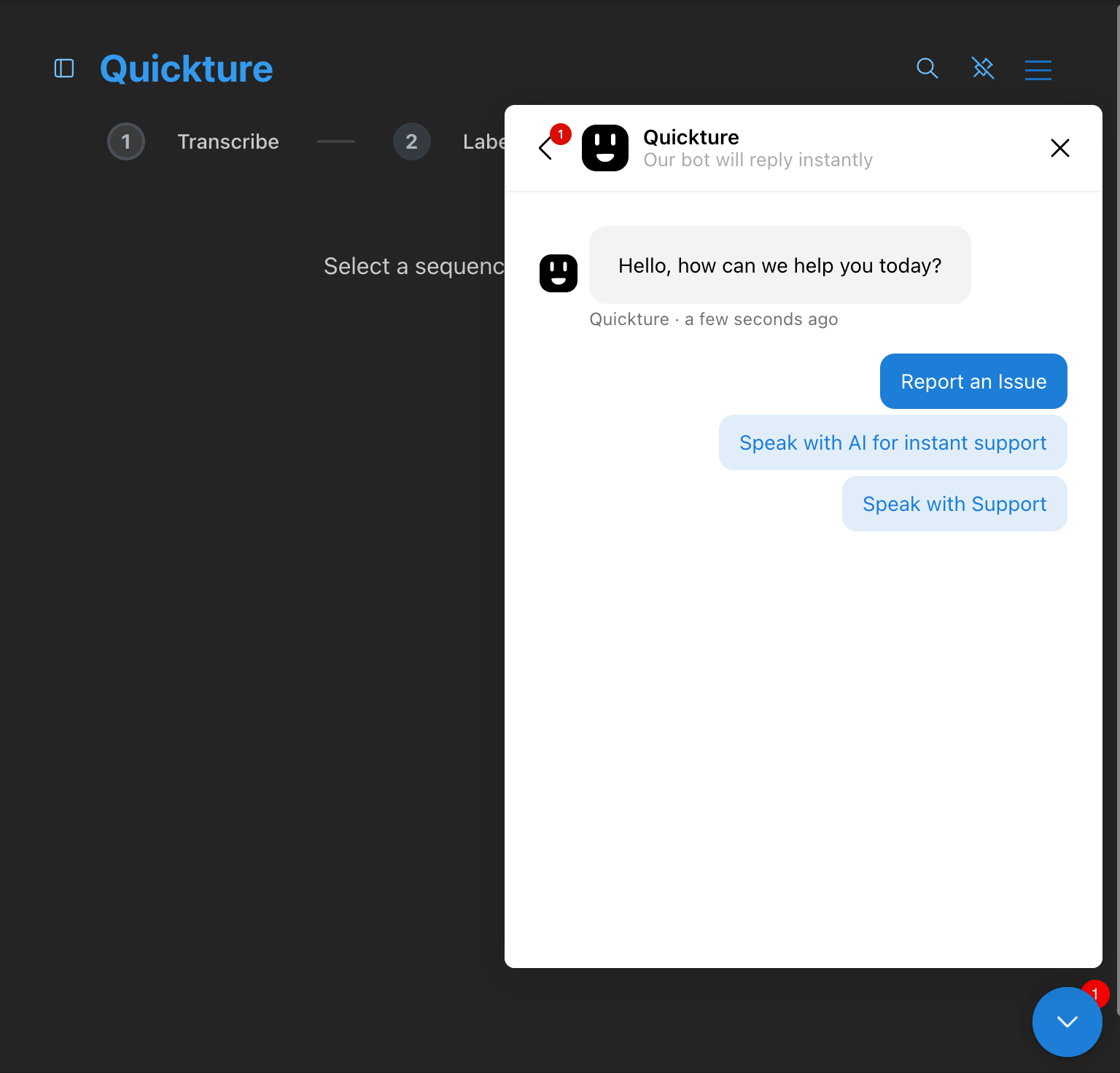
If Quickture does not follow your instructions or produces unexpected results, use the help widget in the bottom right corner of the interface. Select Chat with Us and then Report an Issue. A single sentence describing what happened is enough. Quickture captures the relevant context automatically so the team can diagnose the problem quickly.
Be specific with duration. If a cut is too long, say "cut this to approximately X minutes" rather than asking it to remove things generally.
Use Discuss before you Edit. Planning in Discuss mode first, especially across multiple interviews, produces more intentional edits than going straight to Edit mode.
Be detailed with your prompts, and don’t be afraid to ask questions. If you are unsure how to phrase a prompt, just ask Quickture through the Discuss chat box: "Give me some examples of how I could ask for [X]." It has access to the full Quickture knowledge base and can suggest phrasing.
The best results come from people who know the story. Quickture responds to context. The more clearly you can describe what you are looking for and why, the closer it will get on the first pass.
Keep interviews as separate sequences. Do not combine multiple interviews into one sequence before processing. This is the single most important organizational step.
