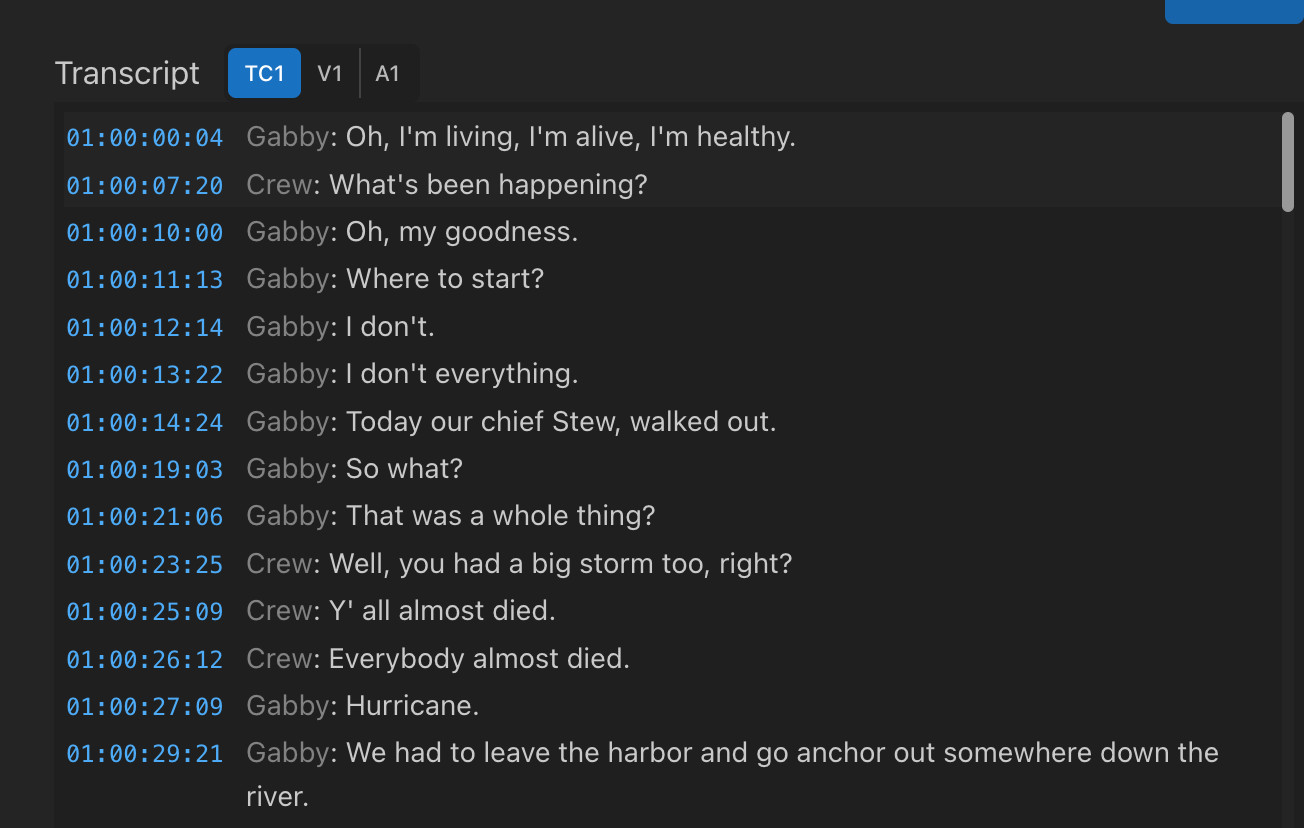
The Quickture panel now includes a TC1/V1/A1 toggle that lets you switch between three timecode views:
TC1 – Sequence timecode (where it is in your edit)
V1 – Source timecode from the Video 1 track
A1 – Source timecode from the Audio 1 track
Click the toggle, and every line in your transcript updates to show the timecode from the original source media. Click again to switch back to sequence timecode. It's that simple.
And if you're exporting transcripts, you can now enable source timecodes in your Transcript Preferences so they're included in Word docs, Excel sheets, SRTs, or any other format you're generating.
Open any transcribed sequence in Quickture
Click the TC1/V1/A1 toggle at the top of the transcript panel
The timecode column updates to show source timecode from either V1 or A1
Click again to cycle through views or return to sequence timecode
That's it. No exports, no re-transcribing, no digging through metadata. Just instant visibility into where your footage originated.
