Quickture now lets you send a sequence directly to the Source Monitor or the Program Monitor, and jump to exact timecodes in either one. This makes it easy to build or reference one sequence while keeping a different sequence open and active in Quickture.
Let’s take a look!
Normally, opening a sequence means everything switches together.
Now, you can separate what you’re viewing from what you’re editing.
With this feature, you can:
Keep one sequence open in Quickture
Send a different sequence to the Source Monitor or Program Monitor
Jump to precise timecodes without switching context
Build edits while referencing another timeline
It’s perfect for comparison, assembly, and checking workflows.
You can send any sequence to the monitor you need.
Open Quickture
Locate the sequence you want to preview
Choose Send to Source Monitor or Send to Program Monitor
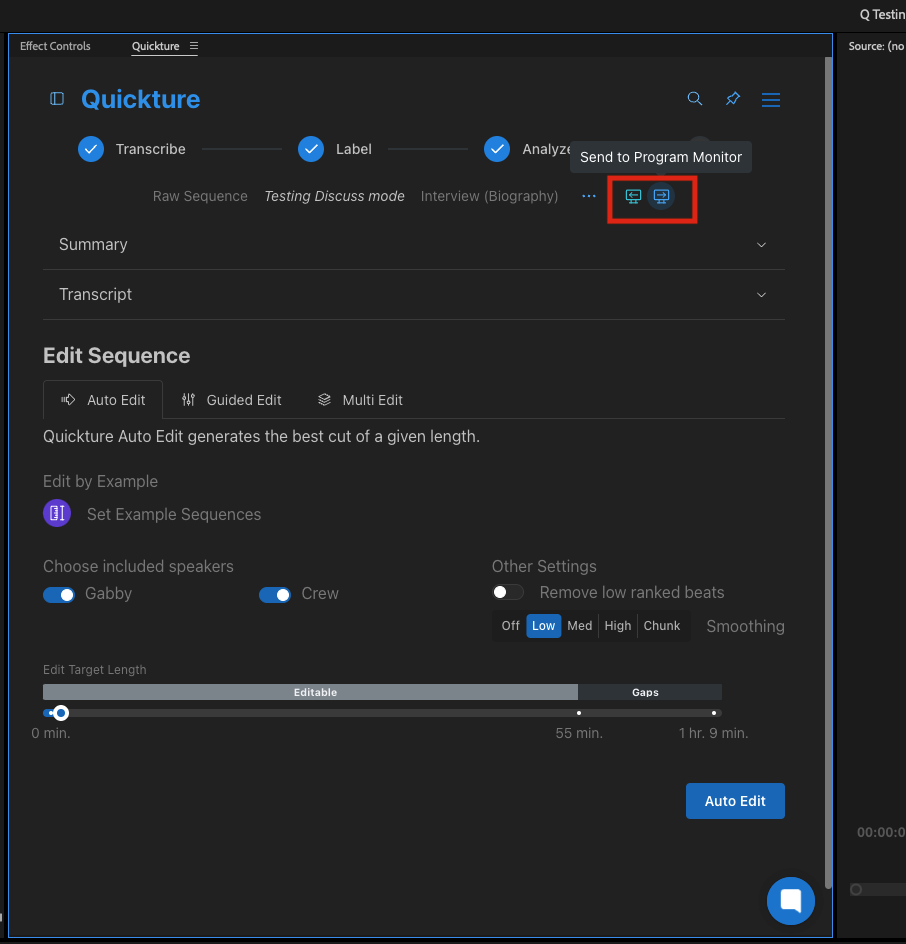
The sequence opens in the selected monitor.
Need to check a specific moment? Quickture has you covered.
• Click a timecode in Quickture
• Choose whether to jump in the Source Monitor or Program Monitor
• The playhead moves instantly to that exact moment
No scrubbing. No guessing. Just straight to the shot.
By letting Quickture stay on one sequence and your monitors show another, this feature gives you true parallel editing. Fewer context switches, more control, and a smoother editing flow.
