Discuss Mode is Quickture's built-in AI chat that lets you have a conversation about your footage. You can ask questions about your transcript, request edit suggestions, find specific moments in your video, manage markers, make edits based on your conversation and more — all from a natural language chat interface.
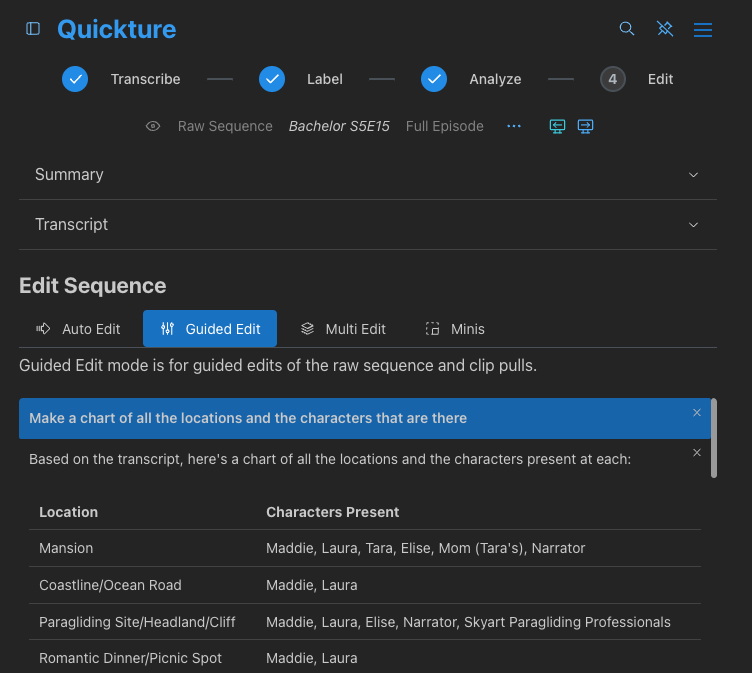
To enter Discuss Mode, open a Raw Sequence in Quickture. In the text input area at the bottom, you can type your question or instruction and press Send. Quickture reads the full transcript of your sequence and responds in real time using streaming text.
You can ask follow-up questions, refine your requests, and have a back-and-forth conversation. Quickture remembers the full context of your chat within the session.
Example prompts to get started:
"What does she say about her family?"
"Give me 50, 100, and 200 word summaries of this episode."
"Make an outline for a 45 second version of this scene for TikTok."
Quickture has full access to your transcript — including speaker names, dialogue, and story beats. You can ask it anything about the content:
Summarize content: "Give me a summary of this interview" or "What are the main topics covered?"
Find specific dialogue: "What does John say about the budget?" or "Find all the lines where they mention the deadline."
Compare speakers: "What do the different speakers disagree about?"
Understand topics: "What is the main argument in the second half of the interview?"
Quickture can nicely format with headers, bullet points, and bold text when appropriate. You can also ask for a chart or graph based on the information.
When you ask Quickture about specific dialogue, it can look up the exact timecodes for any transcript line. This is useful for:
Locating a specific quote in your timeline
Confirming where in the sequence a particular moment occurs
Getting start and end timecodes for lines you want to use
Example: "What's the timecode for when Sarah says 'I never expected that to happen'?"
Quickture will return the precise start and end timecodes in HH:MM:SS:FF format, along with the speaker name and full line text.
Quickture can retrieve technical information about your current sequence, including:
Frame rate (e.g., 24fps, 23.976fps, 29.97fps)
Timebase
Starting timecode
Total duration
Example: "What's the frame rate and duration of this sequence?"
You can ask Quickture to propose an edit of your material. It will create a structured edit using only the existing transcript lines — it never invents dialogue, narration, or voice-over.
Topic-based edits: "Edit a 3-minute segment about his childhood."
Full story edits: "Create a story edit that focuses on the conflict between the two main characters."
Selective pulls: "Select all the lines about cooking techniques."
Reordering: "Rearrange the interview so it starts with the conclusion and works backward."
Quickture follows strict editing rules: it can include, exclude, and reorder existing whole lines, but it will never alter, combine, or fabricate lines.
Quickture can calculate how long a proposed edit will be before you commit to it. It can tell you:
The total duration in timecode (HH:MM:SS:FF), seconds, and minutes
The line count
Duration of individual dialogue lines
Example: "How long would this edit be?" or "What's the duration of the lines where Maria talks about her childhood?"
Quickture can read, add, modify, and delete markers on your Raw Sequence directly from the chat. This is especially powerful for annotating your timeline based on content analysis.
Ask Quickture to show you all the markers currently on your sequence:
Example: "Show me all the markers on this sequence."
Quickture will list each marker's position (timecode), name, comment, color, and track information.
You can ask Quickture to place markers at specific points. You can specify a color and tell it what to put in the marker comments.
Example: "Add a red marker at every point where they talk about the budget" or "Mark all the funny moments with green markers and put a comedy grade in the comment."
Quickture will look up the relevant timecodes in the transcript and add markers with the names and colors you specify. Available marker colors include: Red, Green, Blue, Cyan, Magenta, Yellow, Black, White, Pink, Forest, Denim, Violet, Purple, Orange, Grey, and Gold.
You can ask Quickture to change the name, comment, or color of existing markers:
Example: "Change the color of the first marker to blue" or "Update the comment on the marker at 01:02:15:00."
You can ask Quickture to remove specific markers or groups of markers:
Example: "Delete all the red markers" or "Remove the marker named 'Interview Start'."
When working in Multi-Edit mode with multiple sequences loaded, Quickture can search across all your transcripts — not just the one currently in focus.
Example prompts:
"What does the chef say about chocolate in any of the other interviews?"
"Find mentions of the deadline across all sequences."
"Compare what different interviewees say about the company culture."
Quickture searches each additional sequence in parallel and returns combined results, including which sequence each piece of information came from. When retrieving timecodes, the results include the sequence name so you know exactly where each line lives.
If you have a question about how to use Quickture itself — not about your footage — Quickture can search the help center documentation and surface relevant articles.
Example prompts:
"How do I export an AAF to Avid?"
"How do I add speakers to my transcript?"
"What formats does Quickture support?"
Quickture will search the help center and return matching articles with titles, links, and relevant excerpts so you can find the answer quickly.
Be specific: Instead of "edit this," try "Edit a 2-minute segment focusing on the argument between John and Maria, starting with the tension and ending with the resolution."
Ask follow-ups: Discuss Mode remembers your conversation, so you can say "Now make it shorter" or "Remove the last three lines."
Combine capabilities: You can ask Quickture to find visuals, then create an edit with overlays, then mark key moments — all in one conversation.
Use it for analysis: Before editing, ask Quickture to summarize the material, identify key themes, or highlight the strongest soundbites.
Request clip pulls: If you know what you want, ask Quickture to pull selects into a bin so you can start assembling immediately.
