Quickture 1.4.14 is built for production, with features to support bigger teams with more footage.
This release introduces source timecode display, so you can trace any line in your transcript back to the original source media. You can also export transcripts with source timecode so you can keep your whole production in sync. We've also added an auto-accept option to skip speaker mapping, bin-level search scoping in Avid, and an improvement to Source/Program monitor selection so your choice actually sticks.
Know your source. Fewer clicks. Keep cutting.
Your transcript can now display source media timecode as well as sequence timecode. Perfect if your production works in time-of-day timecode.
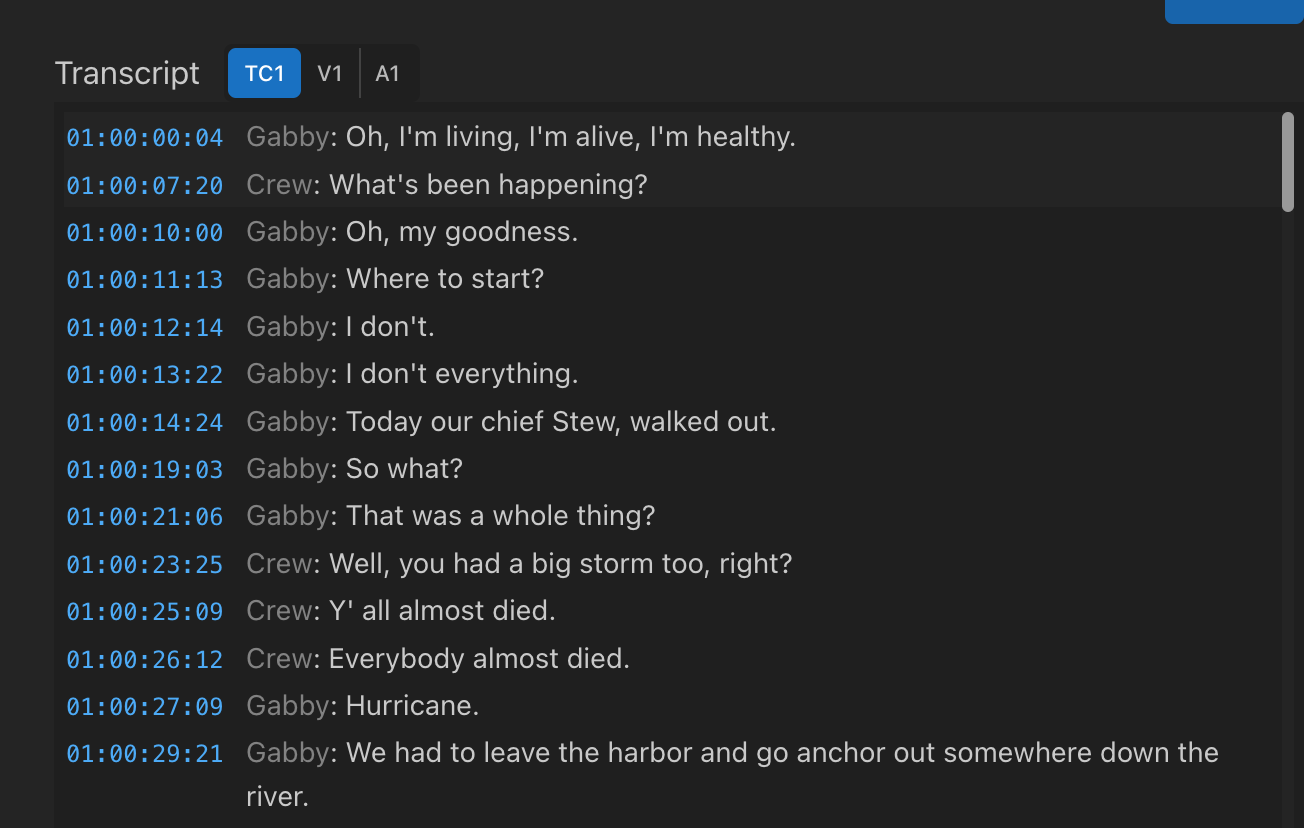
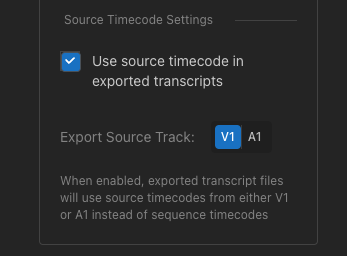
The new TC1/V1/A1 toggle lets you switch between sequence and source timecodes (from either Video V1 track or Audio A1 track), so you can see exactly where this line is from in your source clip. You can also enable Source timecodes in your Transcript exports in Transcript Preferences.
Perfect for:
Time-of-day timecode productions
Story departments that rely on transcripts
Conforming back to original camera media
Verifying edits against source footage
Any workflow where "where did this come from?" matters
If you need to ingest a lot of material into Quickture fast, just turn on Auto Label speakers to automatically accept Quickture’s speaker predictions. Don’t worry, you can always change things later! But this means your ingest will breeze right through labelling to analysis and when you come back to check on your batch ingest, everything will be ready to go.
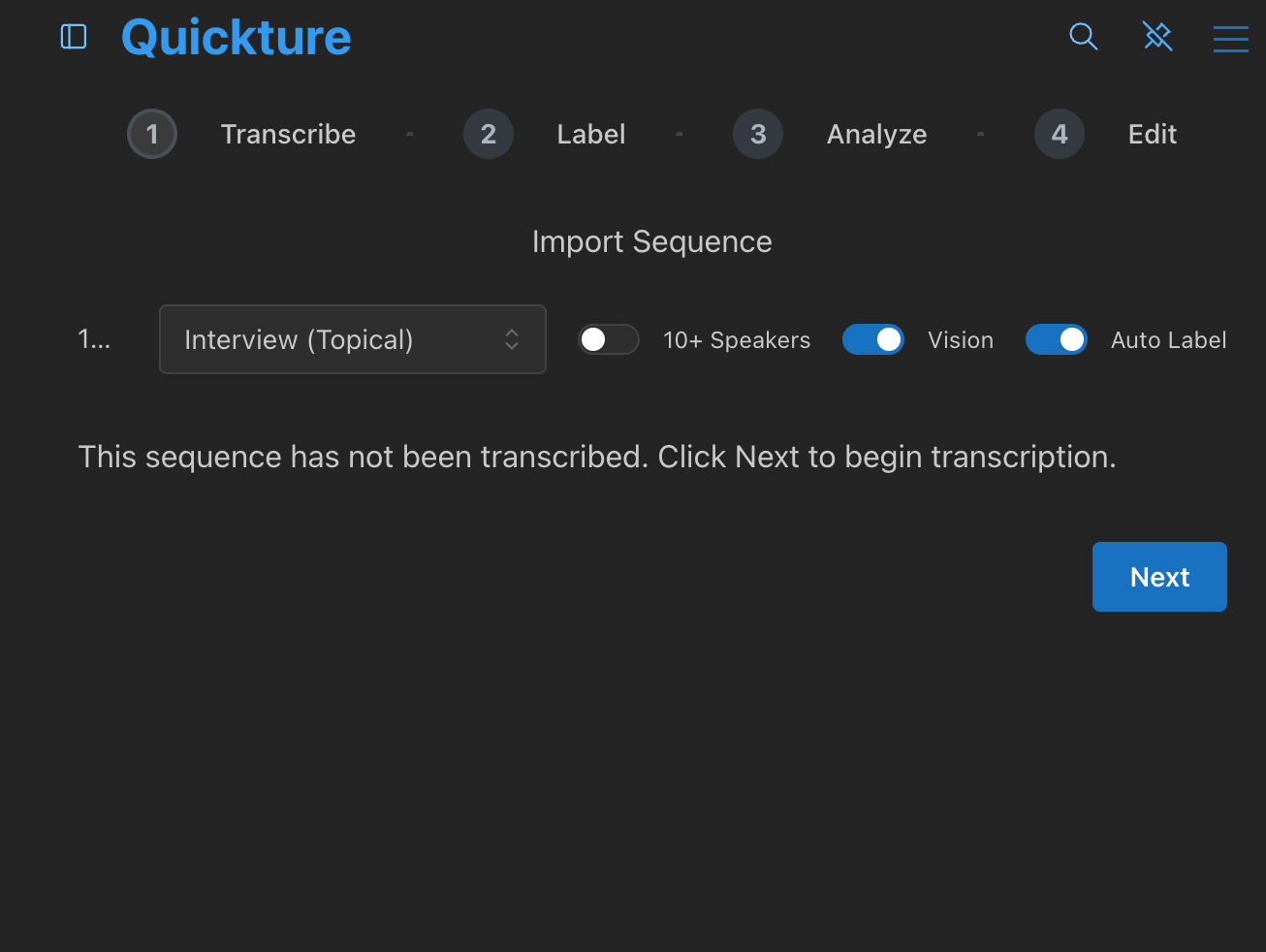
Turn it on when you’re transcribing. Turn it off anytime you want the review step back.
Perfect for:
Fast turnarounds where you just need the transcript now
Projects with consistent, well-known speakers
Batch processing multiple sequences
In 1.4.1 we introduced buttons to send the Quickture sequence you’re working on in the panel to Source or Program monitors. Now your choice actually sticks. This build makes sure that if you manually load another sequence into the timeline or into the Source Monitor, Quickture will still load the right sequence into the right monitor if you click a transcript timecode.
The active monitor button is also highlighted (green for Source, blue for Program) so you always know which monitor is targeted.
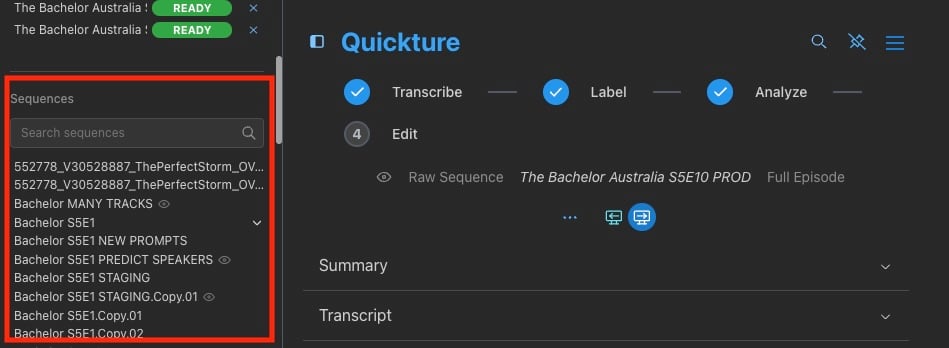
We added new navigation to make it easier to find and open any of your Quickture ingested sequences. The new Sequences list appears under the Activity list in the sidebar. Open it up by clicking the icon next to the Quickture logo.
The Sequences list shows you all of the sequences you ingested into Quickture in a given project. You can:
Click on any sequence to open it
Toggle a parent sequence to reveal it’s children
Search for sequences by name
See sequences with Quickture Vision enabled (the little eye icon).
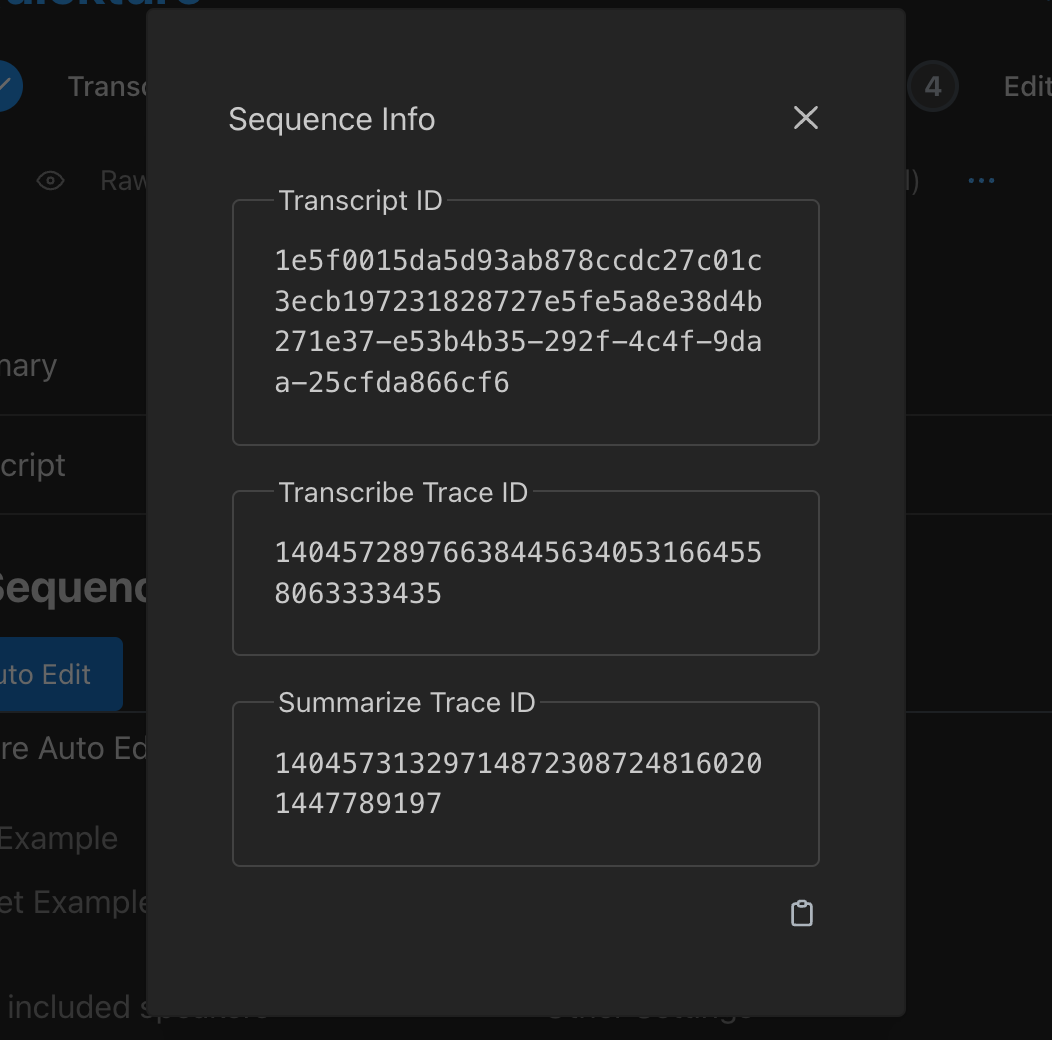
We want to make it easy to report a bug or work with Quickture Support to fix your issues. Quickture now includes detailed logging info under Sequence Info (inside the Sequence Menu – the three blue dots). If something goes wrong, our team can ask you to copy and paste this info into the support chat… much easier than reading them to the support person out loud!
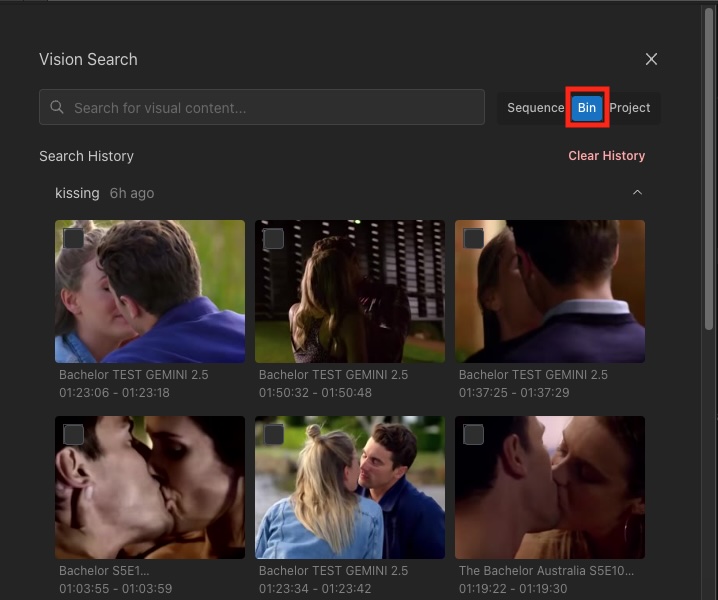
In Avid, the Visual Search tool lets you search your current Bin, along with previous options of the current sequence or the entire project.
Fixed multi-edit sequence transcripts with the wrong speaker names. All export formats (SRT, TTML, Excel, Word, ScriptSync, Avid DS, and more) now resolve speakers correctly.
New per-user Avid bin naming on NEXIS shared storage — bins are now named per user (e.g. "Quickture Temp - Jane") to prevent lock conflicts between editors.
