Meet Quickture Vision, our new visual intelligence framework — launching first with Vision Search and Vision Transcript, and designed to power a growing set of visual editing tools.
For every sequence, Quickture generates a highly detailed visual transcript of everything that appears on screen in a traditional three-column format, logging Timecode, Visual descriptions, and Dialogue.
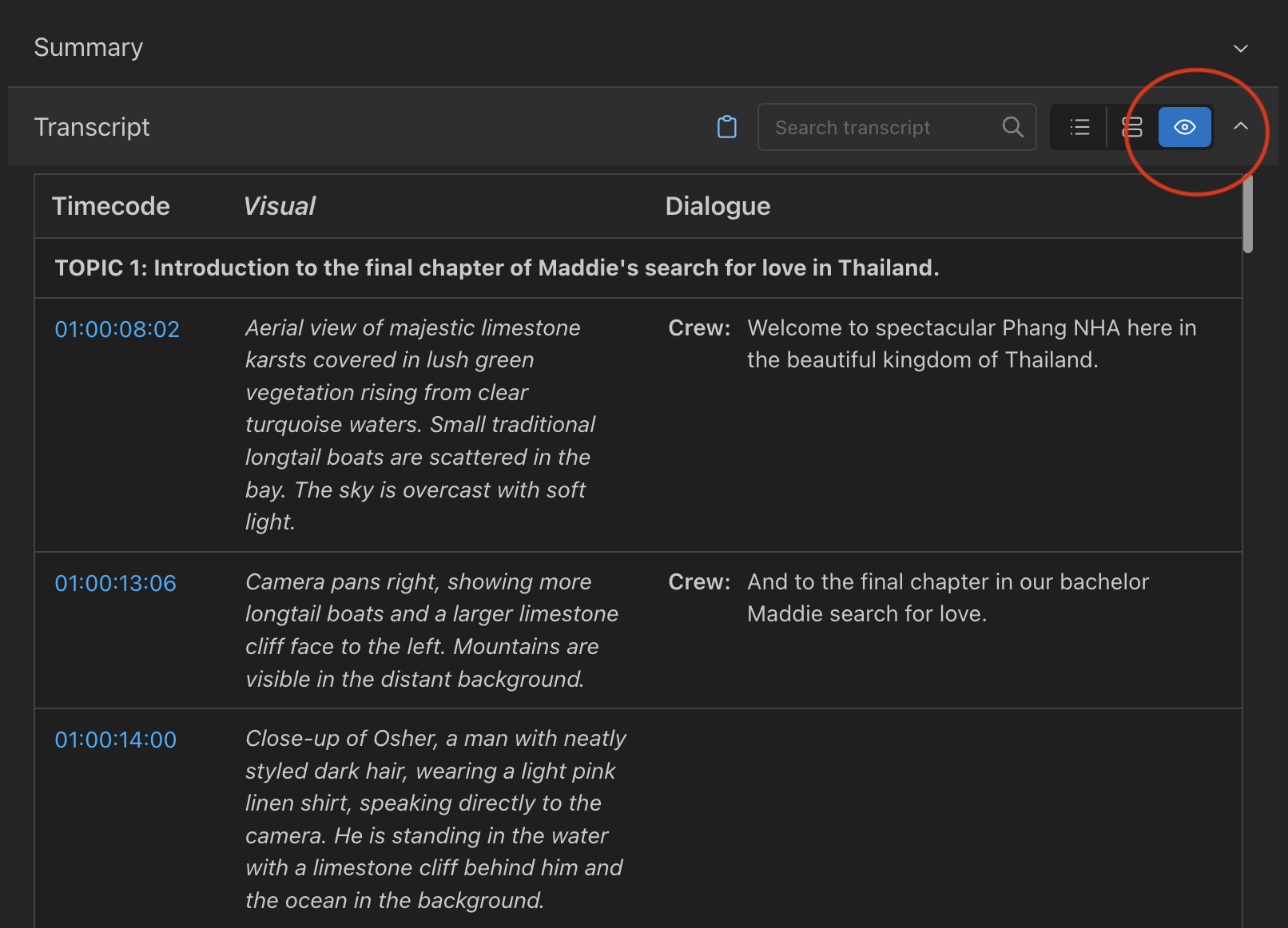
You can easily search the Vision Transcript directly, for both visuals and dialogue, and in the Menu > Transcript Preferences you can choose to export Word, Excel, or Text versions of the Vision Transcript.
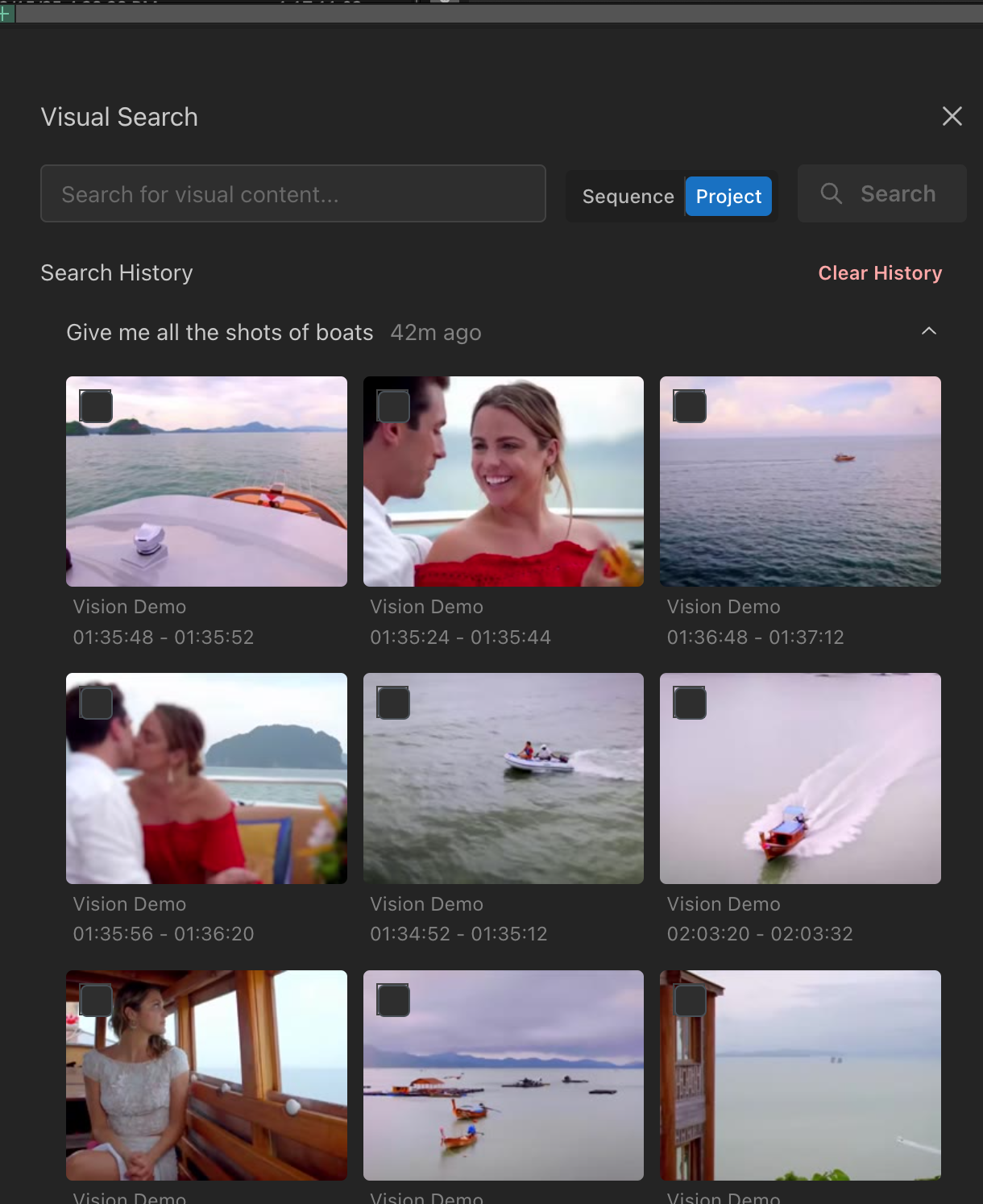
The little magnifying glass icon in the top right of your Quickture panel opens the Vision Search bar. Type whatever you want, from single words (cars) to detailed descriptions (a man walking from left to right on screen wearing a black cowboy hat). Quickture will find it, whether in a single sequence or the entire project!
Eye icon next to sequence names indicates that a sequence has been vision-transcribed and helps quickly identify which sequences support Vision Search
Add markers directly from visual search results
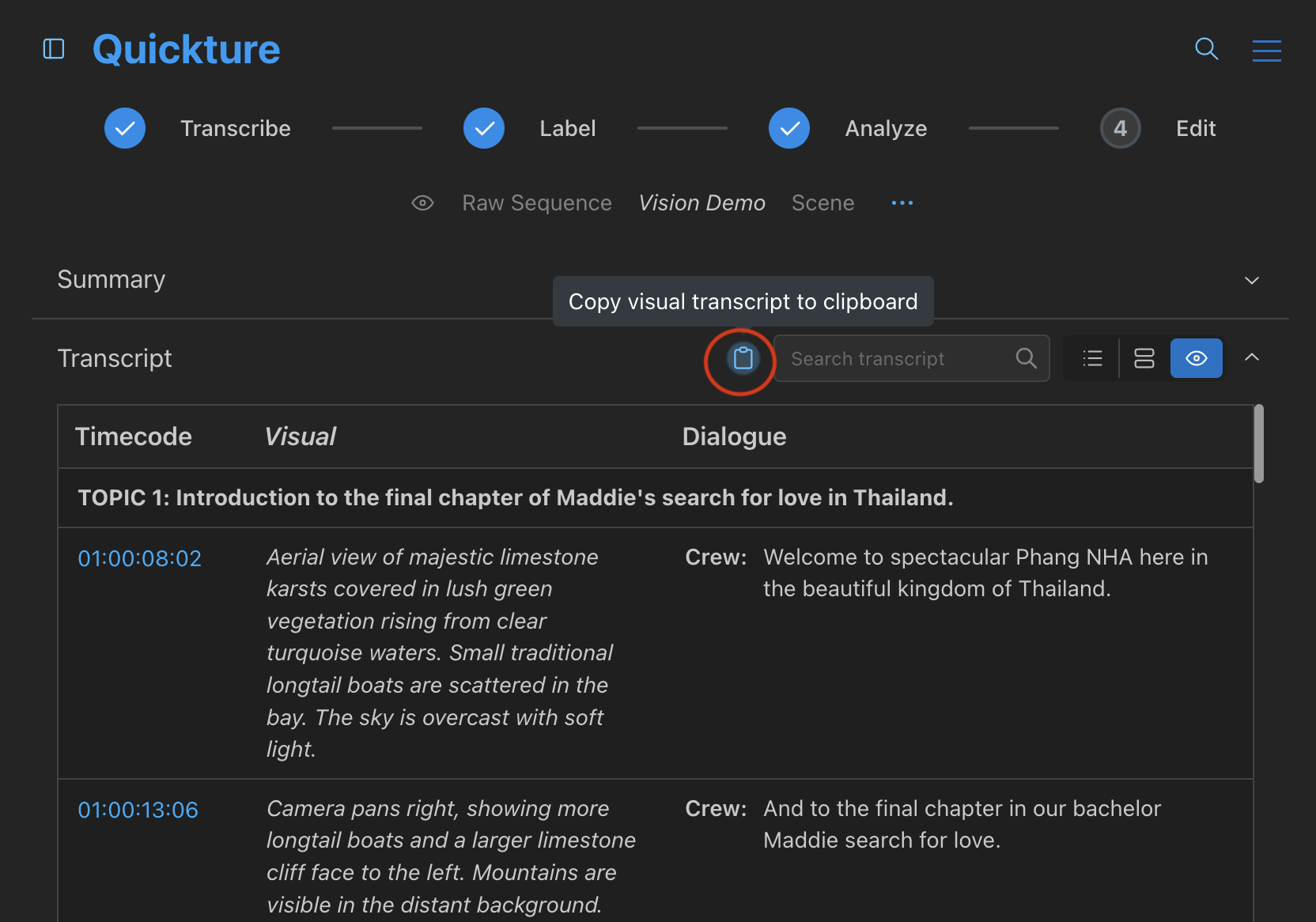
We added a new copy button for Transcripts, Summary, and Response notes. Click it to copy content to the clipboard, and then paste your content anywhere, while preserving the nice table structure.
In Guided Edit or Multi Edit tabs, use Cmd + Enter (Mac) / Ctrl + Enter (Windows) to submit Discuss or Edit prompts instantly, instead of slowly… arduously… clicking the “Send” button.
Quickture generates mp3 and mp4s in order to transcribe and analyze your footage. Those used to be saved in your project directories, but they took up a lot of space! Now exported files are deleted after upload. This prevents Quickture temporary files from piling up on your system
Marker color preferences (Avid and Premiere) and marker track preferences (Avid only) are now customizable.
You used to be able to add markers for every line. But some people didn’t want every line! So we delivered— now you can add markers as paragraphs, just like in the traditional script transcript format you can save. Fewer markers, cleaner timelines.
Choose whether to include speaker names in captions. Easily generate SRT files without speaker names when needed.
Welcome friends from Denmark, Korea, and Poland! Quickture now supports:
Danish
Korean
Polish
Faster support is at your fingertips with critical information about your specific sequence or edit when you need it!
Click the Sequence Menu (three blue dots) and select Sequence Info to display Quickture Transcript ID and Edit ID
Share this information with Quickture Support to help us quickly access relevant logs
You know those annoying .exported.01 sequences that appear whenever you start an import? Those just don’t spark joy so we’re automatically hiding them in a new Quickture Temp bin. Finally, your tidy bins remain tidy!
