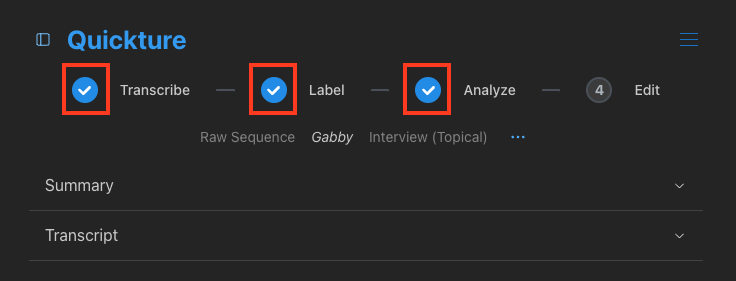

Quickture now allows you to jump back to any step in the import process to start fresh, without having to do any complicated gymnastics with your sequence and its clips. Just click the icon next to the import step at the top of the panel.
Re-transcribe a sequence if you want to change the active audio tracks or just start over.
Re-label a sequence to get the names right.
Re-analyze a sequence to change the sequence type (from interview to scene for example) or to apply custom beat scores.
We updated our Discuss feature so it’s smarter and more capable. Previously, Quickture would sometimes get stuck in a loop trying to answer a question. It shouldn’t do that anymore! And it should also be able to respond with well formatted charts and tables.
So you could ask “Make a table of all the locations, the time of day, and the characters that were present.” and you’ll get a nice formatted table.
We updated the Auto-Edit slider to deliver more accurate timing results.
Quickture would sometimes get stuck on a failed export. We added a cancel button to stop the existing process and get your sequence back to the starting point so you can try again.
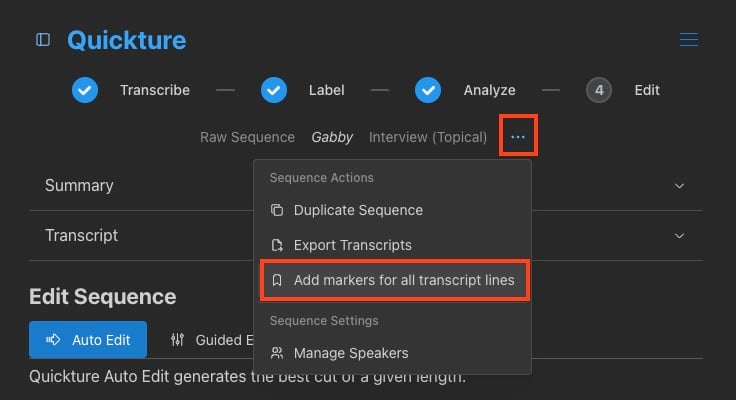
We added a new menu item in the Sequence Menu that allows you to add markers for every line of dialogue to your raw sequence. You can also set preferences for colors in the Preferences menu. This was a feature request from clients that we’re happy to fulfill. Thank you for your patience! This feature is currently only available in Media Composer but we are working on the Premiere version to release ASAP!
Mixed Frame Rate Clips Fixed - You can now include a group with mixed frame rates in your Raw Sequence. We fixed an export bug that was blocking this usage.
Our last release introduces a bug that broke batch import on Premiere. Now it’s fixed. Apologies for the trouble!
